How to Manage Staff Roles and Permissions
Rather than giving every staff member full access, MPAZI uses roles to match what someone can do to what their job actually requires.
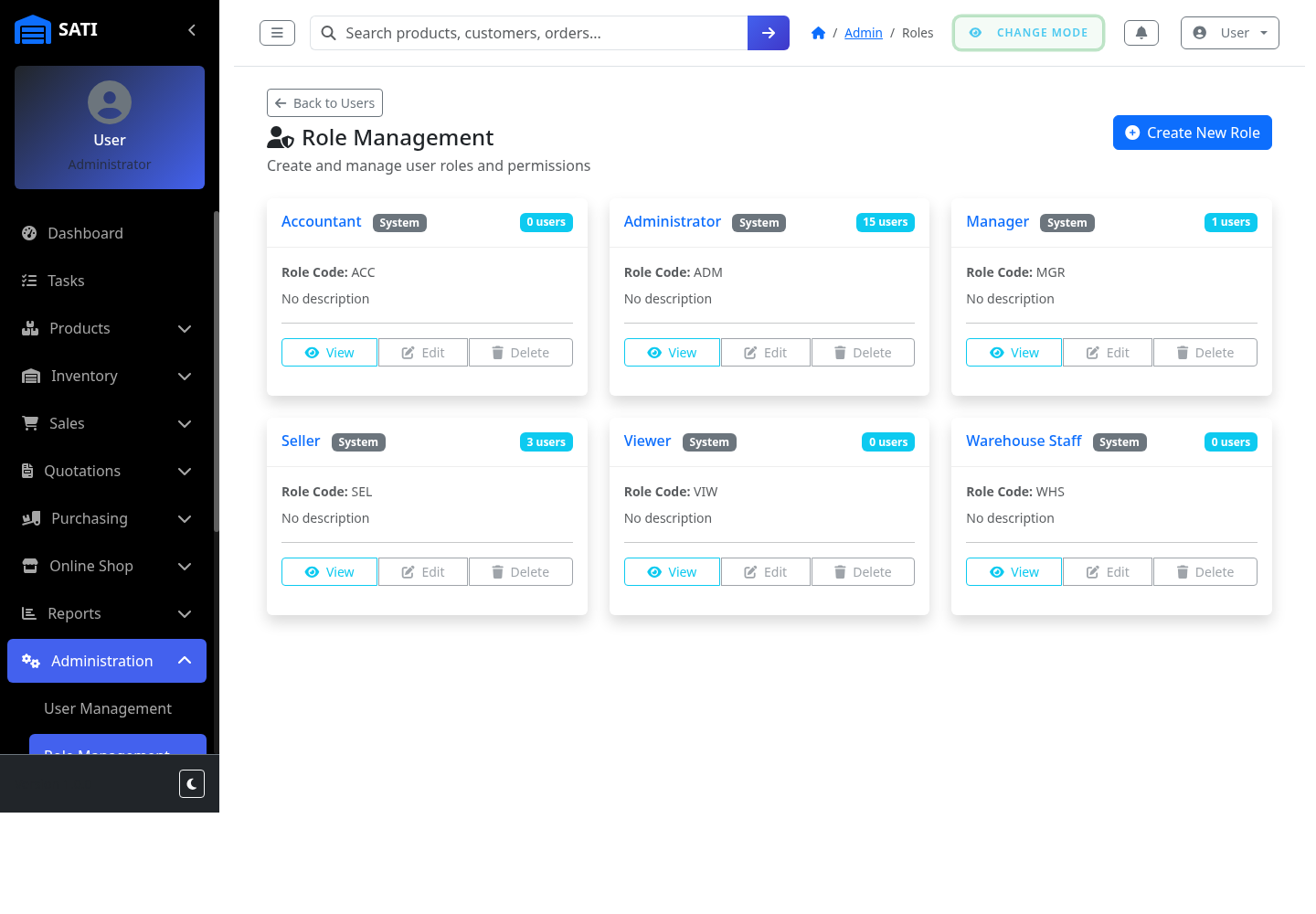
Open Roles
Go to Admin → Roles to see every role available in your company, along with how many users currently hold each one.
Review a role's permissions
Click View on a role (Accountant, Administrator, Manager, Seller, Viewer, Warehouse Staff) to see exactly what it allows.
Adjust a role if needed
Click Edit to change what a role can access - useful if your team's responsibilities don't map exactly to the defaults.
Create a custom role
Click Create New Role if none of the existing roles fit - useful for a position with a narrower or unusual set of responsibilities.
Assign roles to staff
When adding or editing a user, assign them the role that matches their job - this is what determines which pages and actions they can use.