ERP App
How to Manage Inventory Across Multiple Warehouses
Any business with more than one storage location - a shop floor and a back warehouse, say - can track stock separately per location while still seeing the combined picture.
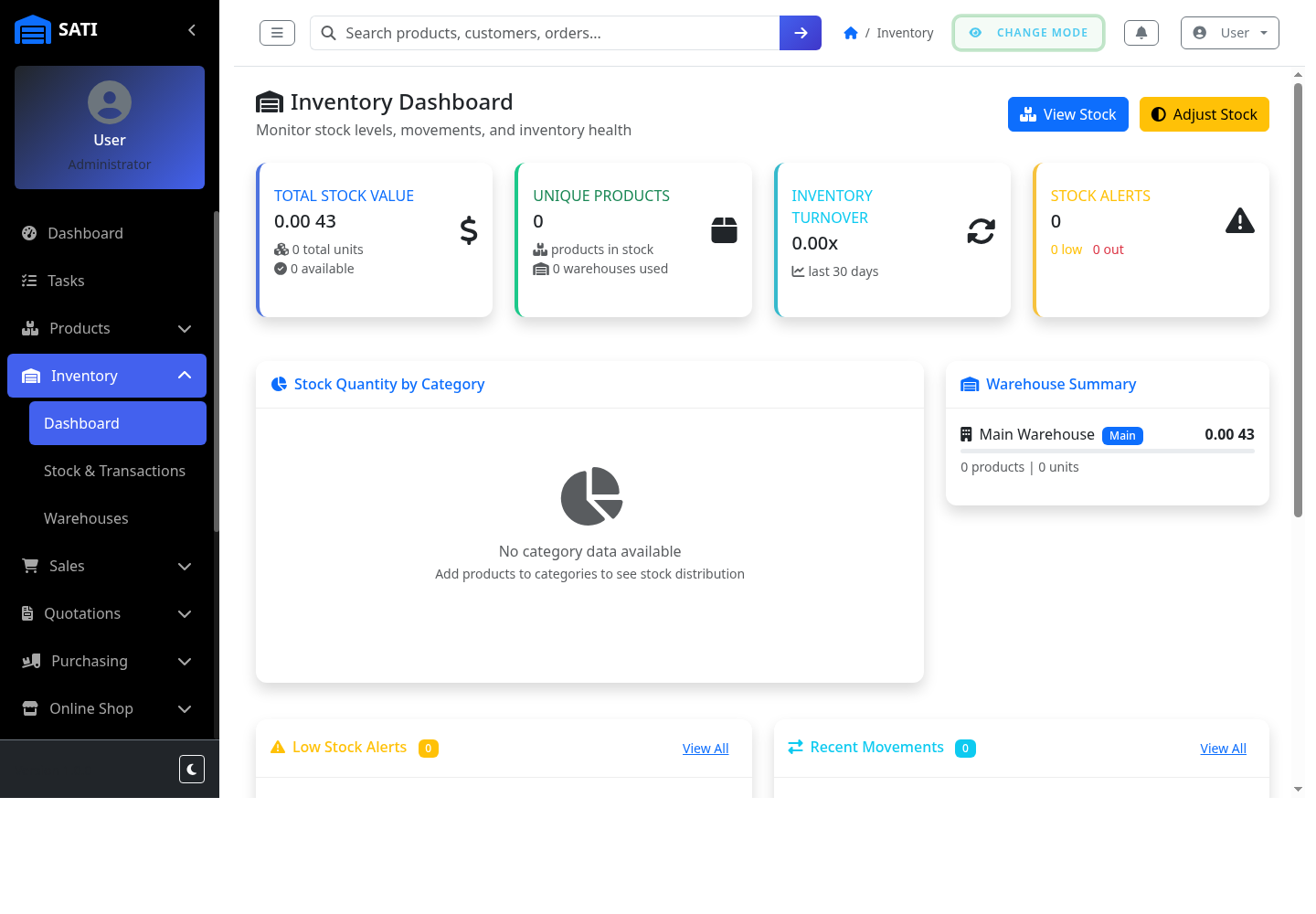
Open the Inventory Dashboard
From the sidebar, go to Inventory to see your Total Stock Value, Unique Products count, Inventory Turnover, and any Stock Alerts (low or out-of-stock items) at a glance.
Check the Warehouse Summary
This breaks down stock value and item counts per warehouse, so you can see which location is overstocked or running low.
Drill into a specific warehouse
Open a warehouse to see its individual stock levels and locations (aisles, shelves, etc.) within it.
Adjust stock when needed
If a physical count doesn't match the system (damage, loss, a manual count), use the stock adjustment option on a product to correct it - every adjustment is logged.